If you're a DTF printer, you know that time is money. Every minute spent manually arranging designs on a film is a minute not spent printing. That's where a DTF gangsheet builder comes in. This powerful tool lets you combine multiple designs into a single sheet, maximizing film usage and cutting production time. In this guide, I'll walk you through everything you need to know about gangsheet builders, from how they work to pro tips for getting the most out of them. Whether you're a small shop or a large operation, mastering this tool can transform your DTF printing workflow.
What Exactly Is a DTF Gangsheet Builder?
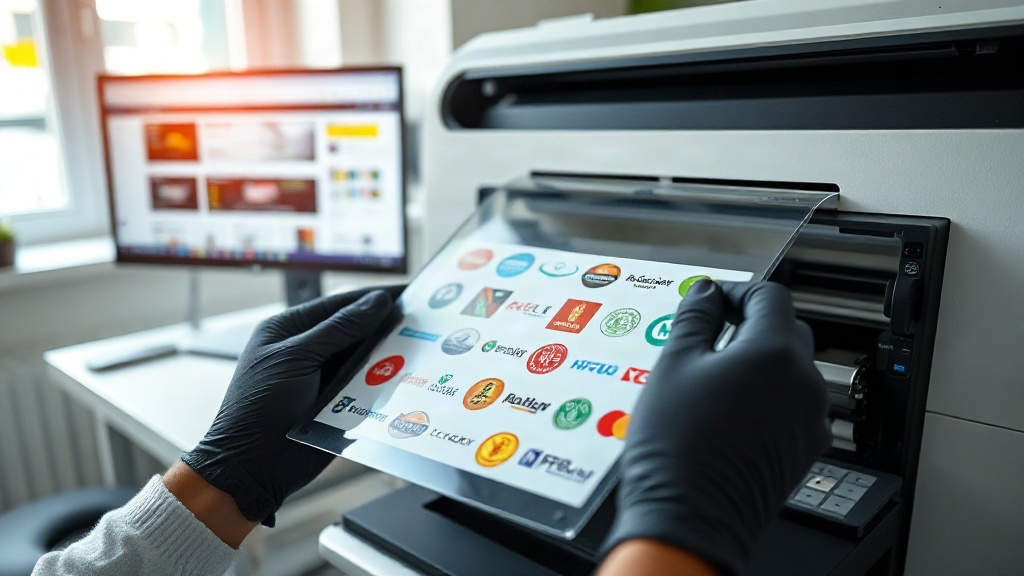
A DTF gangsheet builder is software that helps you arrange multiple DTF transfers onto a single sheet of film. Instead of printing one design at a time, you can nest dozens of images together, saving film, ink, and time. Think of it as a digital puzzle solver: it automatically finds the best layout to minimize waste. Most builders let you import designs, set spacing, and even auto-rotate items for optimal packing. The result is a "gangsheet" that you can print in one pass, then cut and apply as needed.
I remember when I first started with DTF printing, I wasted so much film printing single designs. A gangsheet builder changed everything. Now, I can fill a 22x60 inch sheet with 50 small logos in minutes. The savings alone paid for the software in a month.
Why You Need a Gangsheet Builder in Your DTF Workflow
Let's break down the benefits. First, cost savings: film and ink are expensive. By nesting designs tightly, you use less of both. Second, time efficiency: printing one large sheet is faster than multiple small runs. Third, consistency: all transfers on the sheet share the same settings, so colors match perfectly. Fourth, scalability: as your order volume grows, a builder lets you handle more jobs without hiring extra staff.
But it's not just about savings. A good builder also reduces errors. Manually placing designs can lead to overlaps or misalignment. The software prevents that with precise spacing and alignment tools. Plus, you can save layouts as templates for repeat orders.
Key Features to Look for in a DTF Gangsheet Builder
Not all builders are created equal. Here are the must-have features:
- Auto-nesting: Automatically arranges designs to use the least amount of film.
- Rotation and flipping: Lets you rotate designs to fit better.
- Spacing control: Sets consistent gaps between images for easy cutting.
- Film size presets: Common sizes like 13x19, 22x60, etc.
- Layer management: For handling complex designs with multiple colors.
- Export options: Supports PDF, PNG, TIFF for your printer's RIP software.
- Cost calculator: Estimates ink and film usage per sheet.
Some advanced builders even integrate with your printer's RIP to streamline the process further. If you're serious about DTF printing, invest in a builder that offers at least the above.
How to Use a DTF Gangsheet Builder: Step-by-Step
Using a gangsheet builder is straightforward. Here's a typical workflow:
- Import your designs: Load all the images you want to print. Most builders accept PNG, JPG, and PDF.
- Set your film size: Choose the sheet dimensions you'll be printing on.
- Auto-arrange: Hit the auto-nest button and let the software do the work.
- Fine-tune: Manually adjust spacing or rotate designs if needed.
- Check the preview: Ensure no overlaps and that all designs are within the print area.
- Export and print: Save the layout as a high-resolution file and send it to your printer.
Pro tip: Always add a small gap (0.1-0.2 inches) between designs. This makes cutting easier and prevents ink bleeding. Also, group similar colors together to reduce ink changes if your printer uses multiple cartridges.
Common Mistakes to Avoid with Gangsheet Builders
Even with great software, users often make mistakes. Here are pitfalls to watch for:
- Overcrowding: Packing too many designs can cause cutting errors. Leave a margin around the sheet edges.
- Ignoring resolution: Low-res images will look pixelated when printed. Always use 300 DPI or higher.
- Forgetting bleed: If your design has a background, add a bleed area to avoid white edges after cutting.
- Not saving templates: If you print the same designs regularly, save the layout to save time later.
- Skipping test prints: Always do a small test print to check colors and alignment before running a full sheet.
I learned the hard way about resolution. I once printed a 50-design sheet only to find all logos were blurry. Now I double-check every file before importing.
Maximizing Efficiency: Advanced Tips for DTF Gangsheet Builders
Once you're comfortable with the basics, try these advanced strategies:
- Nest by size: Place larger designs first, then fill gaps with smaller ones. Most auto-nesters do this, but manual tweaking can squeeze in a few more.
- Use color grouping: If your printer has multiple ink channels, group designs with similar color profiles to reduce cleaning cycles.
- Batch by order: If you have multiple customer orders, group them on separate sheets to avoid mixing up transfers.
- Monitor film waste: Keep track of how much film you use per sheet. A good builder reports this, helping you price jobs accurately.
- Update software: Builders improve with updates. New algorithms can nest tighter and faster.
Another tip: calibrate your printer regularly. Even the best gangsheet layout won't help if your printer is misaligned.
Integrating a Gangsheet Builder with Your DTF Printing Setup
Your builder should fit seamlessly into your existing workflow. Most builders export files that work with popular RIP software like Cadlink or AcroRIP. If you use a printer with its own software, check compatibility. Some builders offer direct printer integration, which is a huge time-saver. Also, consider your computer's specs: gangsheet builders can be resource-intensive, especially with large sheets. A decent CPU and at least 8GB of RAM are recommended.
If you're outsourcing printing, many print shops accept gangsheet files. Just ensure you follow their file requirements. But if you're printing in-house, a builder is a no-brainer.
Frequently Asked Questions About DTF Gangsheet Builders
What is the best DTF gangsheet builder for beginners?
For beginners, I recommend starting with user-friendly options like DTF Print Smart's builder or other cloud-based tools. They offer intuitive drag-and-drop interfaces and auto-nesting, so you can create your first gangsheet in minutes. As you grow, you can upgrade to more advanced software with features like color management and printer integration.
Can I use a gangsheet builder with any DTF printer?
Yes, most gangsheet builders export standard file formats (PDF, PNG, TIFF) that any DTF printer can use. However, some printers have specific requirements for color profiles or resolution. Always check your printer's manual or consult the manufacturer to ensure compatibility. If your printer came with its own software, see if it includes a gangsheet feature.
How much film can I save by using a gangsheet builder?
Savings vary based on design sizes and nesting efficiency, but typically you can reduce film usage by 20-40% compared to manual layout. For a shop printing daily, that adds up to significant cost savings. Additionally, you'll save time, which is even more valuable. Track your film usage before and after to see the difference.
Is it worth investing in a paid gangsheet builder?
If you print DTF transfers regularly, absolutely. Free tools exist but often lack advanced features like auto-nesting or high-resolution export. Paid builders usually offer better support, updates, and efficiency. Calculate your monthly film and ink costs; if a builder can cut them by 30%, it often pays for itself quickly.
How do I choose the right film size for my gangsheet?
Choose a film size that matches your printer's maximum print width and your typical order volume. Common sizes are 13x19 inches for small batches and 22x60 inches for production. If you're unsure, start with a smaller size to minimize waste, then scale up as you get comfortable. Your gangsheet builder should have presets for standard sizes.
Mastering the DTF gangsheet builder is a game-changer for any DTF printer. It's not just about saving money; it's about working smarter. With the right tool and a bit of practice, you'll wonder how you ever managed without it. So, fire up your builder, nest those designs, and watch your productivity soar.